
TABLE OF CONTENTS
Has your content moved to a new place url permanently, or are you temporarily pointing a url to a different location, the type of redirect you use matters. While browsers and search engines are not elephants, they do remember things. If a browser or search engine sees that a url is using a 301 permanent redirect, it will assume this is permanent and not look for changes each time it checks a page. This could mean your future changes are not reflected to visitor until they clear their browser cache, or the search engine looks at your site again.
Which redirect do a I use
When redirecting a page, there are certain redirect codes that are used. For the purposes of your Wordpress site, you'll generally want to use a 301 or 307.
301 Permanent Redirects
Permanent redirects are for when content has permanently moved to a new location. Maybe you decided that x.com is better than twitter.com and plan to use this new url. This new location will not change in the future. For example /about-us/staff gets moved to /company/staff.
301: /about-us/staff -> /company/staff
For efficiency, browsers don't check if a 301 redirect is updated. They remember the redirect and immediately go to the redirected url, without checking if the redirect has changed.
If removed the redirect at /about-us/staff or pointed it to a different url, users who had already been redirected will continue to be redirected
307 Temporary Redirects
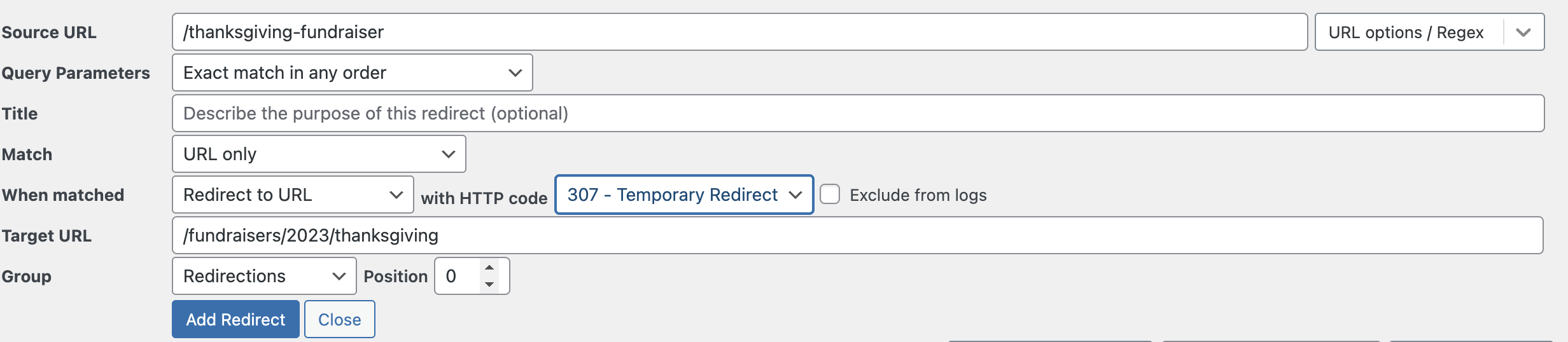
Temporary redirects are used when the redirect may change in the future. For example /thanksgiving-fundraiser-> /fundraisers/2023/thanksgiving.
307: /thanksgiving-fundraiser-> /fundraisers/2023/thanksgiving
Redirection in Wordpress
Most Wordpress sites use the Redirection plugin for redirecting to different pages.
Adding a 301 Permanent Redirect in Wordpress
By default the Redirection plugin creates permanent redirects
- Make sure you've installed the redirection plugin
- In the Wordpress admin go to Tools->Redirection on the left hand menu
- At the top of the page click add new.
- Enter the source url you'd like to redirect from, you'll probably want to select ignore slash
- Enter the target url you'd like to redirect to.
- Click Add Redirect

Adding a 307 Temporary Redirect in Wordpress
- Make sure you've installed the redirection plugin
- In the Wordpress admin go to Tools->Redirection on the left hand menu
- At the top of the page click add new
- Enter the source url you'd like to redirect from, you'll probably want to select ignore slash
- Enter the target url you'd like to redirect to.
- Click show advanced options

- Under the row When matched select 307 - Temporary Redirect.
- Click Add Redirect
In the past, 302 was used as the code for temporary redirects. If you're using this for a temporary redirect, it's fine in most cases, but in the future it's better to use 307.