
Screen Options allow you to customize what you see in the WordPress admin interface. You can adjust these settings on many different pages throughout your site using the Screen Options tab in the upper-right corner of the admin screen.
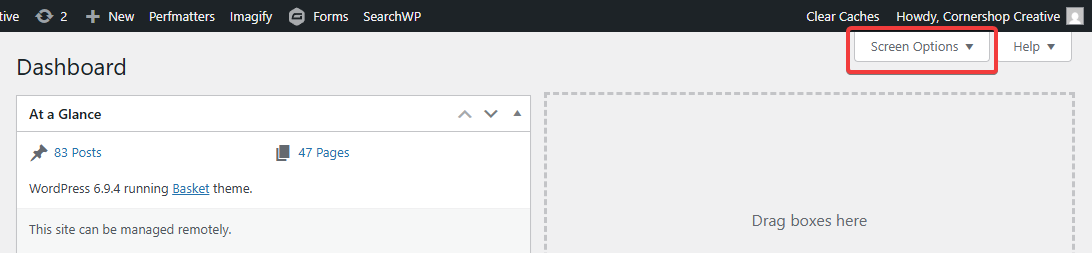
Dashboard
The Dashboard is the first screen you see after logging in. It provides a snapshot of your site, including status information and quick links to key areas.
Using Screen Options on the Dashboard, you can control which panels are visible. For example, you can choose to display security updates, Google Analytics data, or other widgets depending on what’s most useful to you.
Index Pages (Posts, Pages, Events, etc.)
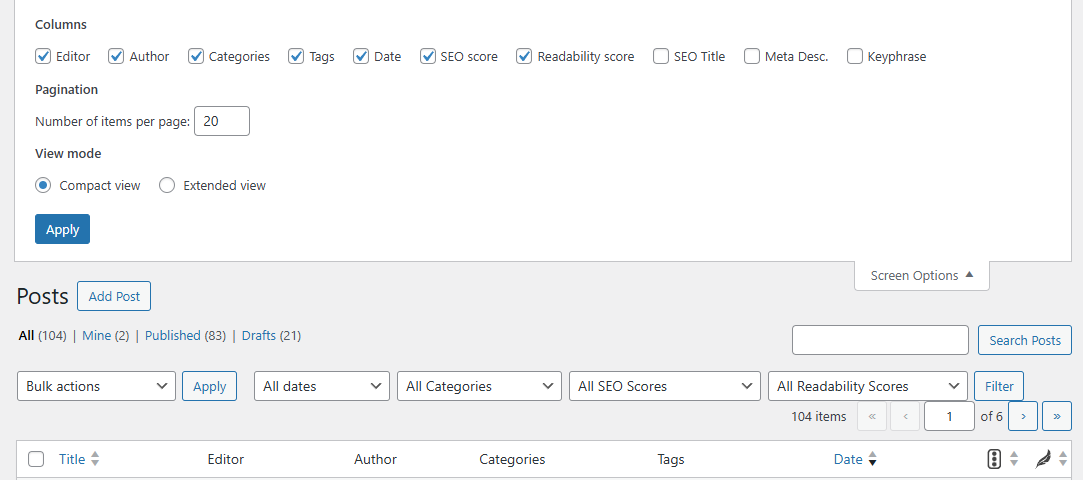
When viewing lists of content—like Posts, Pages, or Events—Screen Options lets you customize how that content appears.
You can:
Show or hide columns in the table
Adjust how many items display per page
This makes it easier to focus on the information you care about most.
Individual Content Items
When editing a specific post, page, or other content item, Screen Options lets you control which editing panels are visible.
For example, you can choose to show or hide:
Author
Featured Image
Custom fields or other settings
If your site doesn’t use certain features, hiding them can simplify the editing experience and reduce clutter.